

Imagine this: you’re ready to send a witty text, but your iMessage decides to play hide and seek. Frustrating, right? If you’ve ever found yourself staring at the spinning wheel of doom or wondering why your messages are stuck in limbo, you’re not alone. Many iPhone users face this mysterious issue, and it can feel like a digital black hole.
Common Reasons For iMessage Issues
Several factors contribute to iMessage not functioning on an iPhone. Understanding these common issues helps pinpoint the problem.
Internet Connection Problems
A stable internet connection is critical for iMessage to work. Without Wi-Fi or cellular data, sending messages won’t occur. He or she should check network settings first to ensure connectivity. Resetting the network can resolve temporary glitches. If using Wi-Fi, confirming the router isn’t experiencing issues is important. Resetting the router can fix connection drops. Users may also confirm that airplane mode is off, which prevents internet access.
Device Compatibility
Device compatibility affects iMessage functionality. Older iPhone models running outdated software might face limitations. Checking for software updates can often resolve these issues. Users should update to the latest iOS version for optimal performance. Incompatible settings between devices can also interrupt services. Users need to ensure that iMessage is enabled in settings for proper communication. Furthermore, if contacts aren’t using iMessage-compatible devices, messages won’t send as intended.
Troubleshooting Steps
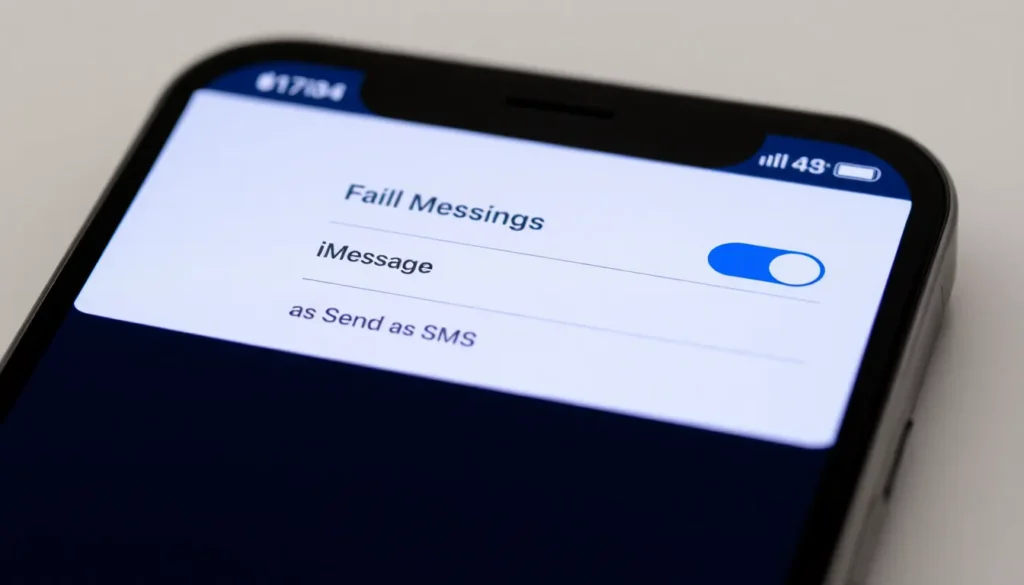
Common solutions exist for resolving iMessage issues on iPhones. Following these methods often helps restore functionality.
Restart Your iPhone
Powering off and on the iPhone resolves minor glitches. Press and hold the side button until the slider appears, then slide to power off. Once the device shuts down, wait for around 30 seconds before powering it back on. A fresh start often eliminates temporary software bugs. Users frequently find that this simple step can restore iMessage functionality.
Check iMessage Settings
Examining iMessage settings is essential. Open the Settings app and tap on Messages. Ensure that iMessage is toggled on. Verify the “Send as SMS” option is enabled, as this allows messages to send as SMS when iMessage fails. Additionally, check the “Receive At” section to confirm the correct phone number or email address is listed. Adjust these settings as needed to ensure proper functionality.
Software Updates and Bugs
Software updates and bugs often impact iMessage functionality on iPhones. Keeping iOS up to date ensures optimal performance and security.
Updating iOS
Updating iOS addresses many underlying issues that may affect iMessage. Users must navigate to Settings, select General, and then tap Software Update to check for available updates. Installing the latest version of iOS can resolve compatibility problems, enhance features, and fix bugs. Regularly updating minimizes the chance of encountering iMessage failures, making it a crucial step in troubleshooting.
Known Bugs and Fixes
Known bugs may disrupt iMessage services intermittently. Occasionally, bugs associated with specific iOS versions cause unexpected issues. Apple provides support forums and release notes detailing these bugs along with available fixes. Restarting the device often resolves minor glitches. Users might also find success by resetting network settings or adjusting their Apple ID settings to eliminate potential conflicts. Staying informed about current bugs and their fixes helps maintain a smoother messaging experience.
When To Contact Apple Support
Contact Apple Support if troubleshooting steps fail to resolve iMessage issues. Users should seek assistance when persistent problems occur despite a stable internet connection and updated iOS software. Support can provide expert guidance on more complex issues, including those involving Apple ID settings.
Instances of unresponsive iMessage features can indicate a deeper underlying issue. Apple Support can assist with systematic diagnostic procedures that identify connection and device-related errors. Users experiencing error messages consistently should consider reaching out for professional help.
If a user cannot access iMessage after following all device settings adjustments, it may be best to contact Apple Support. Complex problems sometimes stem from account issues that necessitate specialized attention. Users should track any patterns related to when iMessage stops working, as this information can expedite troubleshooting with a support representative.
Specific scenarios warrant immediate contact with Apple Support. New iPhone purchases may require account settings verification, particularly if transferring data from an older device. Users encountering recurring bugs or inconsistent message delivery should report these issues for further examination.
Availability of help is conveniently accessible through various channels, including phone support and online chat. Utilizing these resources can lead to quicker resolutions for users dealing with frustrating messaging complications.
Experiencing issues with iMessage can be incredibly frustrating for iPhone users. With a few simple troubleshooting steps users can often restore functionality and get back to messaging seamlessly. Ensuring a stable internet connection and keeping iOS updated are vital components in resolving these issues.
If problems persist after trying common solutions it’s essential to reach out to Apple Support. They can provide in-depth assistance and address any underlying issues that may be affecting iMessage. With the right approach users can overcome these challenges and enjoy a smooth messaging experience once again.